How Proper Invoicing Reduces Chargebacks and Disputes

A chargeback starts when a customer calls their bank instead of you. Sometimes it's fraud, and no invoice will stop a stolen card. Other disputes come from honest confusion. The customer doesn't recognise the charge, can't find what they ordered, or thinks the amount is wrong.
A clear invoice, sent at the right time, takes care of a lot of that confusion before the bank gets involved. And when a dispute does happen, it is one of the documents you hand over as evidence.
This guide covers what to put on the invoice, when to send it, and the limits worth knowing. It uses Avada PDF Invoice for the examples, but the checklist applies whatever app you use.
This article is general information, not legal or payment advice. Your payment provider decides what evidence it accepts.
Why customers dispute charges they actually made
Most disputes that aren't fraud fall into a handful of buckets:
- "I don't recognise this charge." The name on the card statement doesn't match the store name the customer remembers.
- "I never got it." The parcel is late, or arrived while they were away.
- "That's not what I ordered." Wrong size, wrong colour, or the product looked different on the screen.
- "I was charged the wrong amount." A discount code they thought applied, a shipping fee they didn't notice, or tax added at checkout.
An invoice can't fix a late parcel. It does answer the first, third and fourth question in writing, in the customer's inbox, before they think of calling the bank.
What the invoice should show
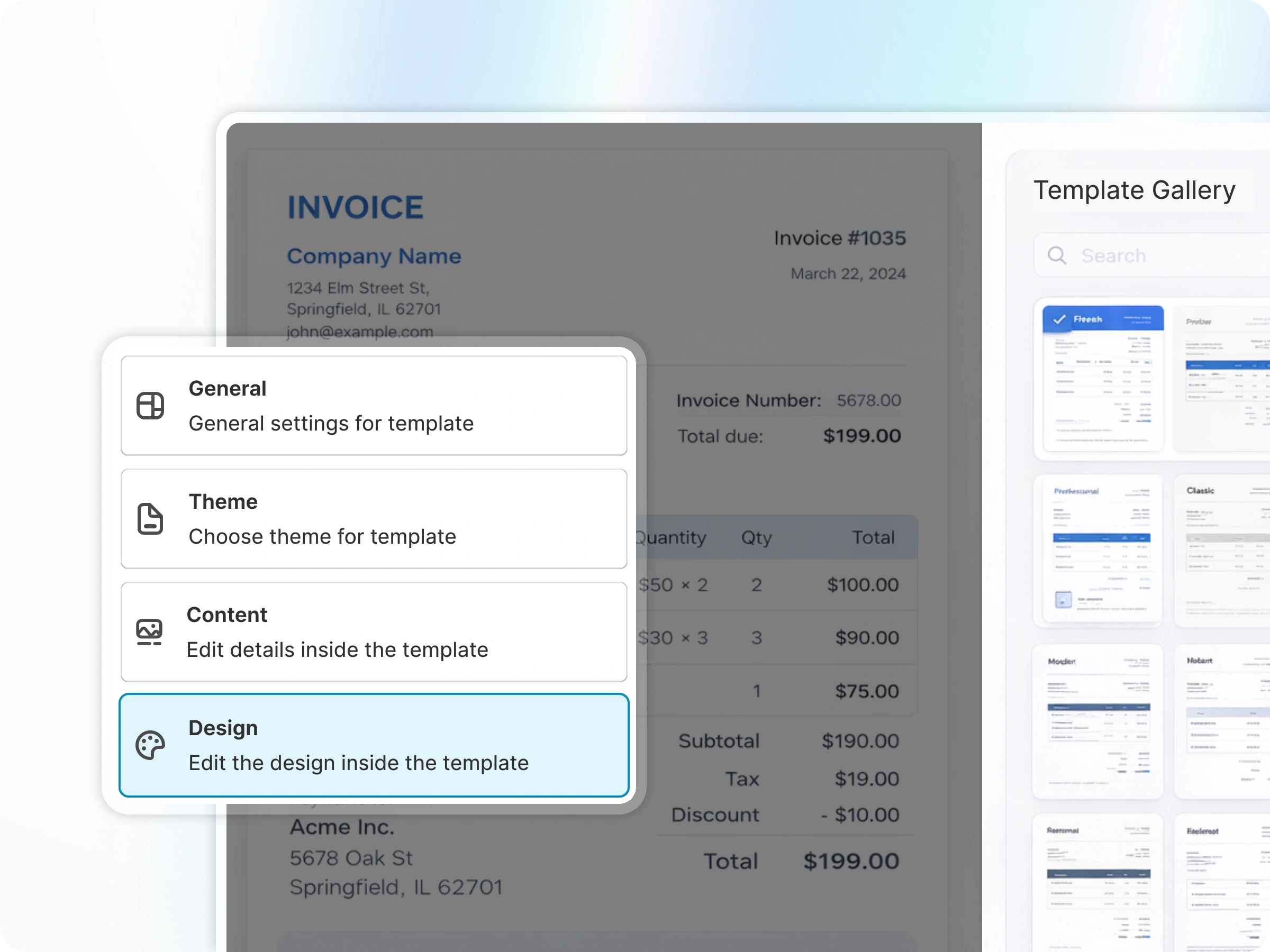
Here is the checklist I'd start with. Every item below is a field you can turn on in the Avada template editor, under Content.
Your store, the way the customer knows it. Store name, website, support email and phone. If the name on your customers' card statements is different from your shop name, put both on the invoice, for example "Northwind Coffee (statement: NWC ROASTERS)". You can type that into the store name field. A customer looking at a mystery line on their statement can then match it to your invoice.
Line items they can recognise. Product name, variant and a product image. SKUs help your warehouse, but a customer remembers "Linen shirt, sand, size M" and the photo, not "LS-0412-M". With the photo on the invoice, the "that's not what I ordered" conversation starts from the same picture on both sides.
Every number that changes the total. Show the discount next to the line it applied to, with the discount code. Show shipping and tax as their own lines, then the total and the amount paid. If the customer can follow the maths from subtotal to total, there's less left to argue about.
How they paid. The payment gateway and the masked card number, so the customer can see which card was charged.
The shipping method and addresses. Billing and shipping address, plus the shipping method they picked at checkout. If a customer disputes delivery time, the invoice shows they chose standard shipping.
A note field, if you use it. Customer notes from checkout can be printed too, which matters for gift messages and special instructions.
The template editor is covered step by step in the create new templates guide. If you sell in the EU, run your template through the free invoice audit as well, because a legally complete invoice and a dispute-proof one need different fields.
Send it early, and keep a copy
An invoice in a drawer does nothing. The customer has to receive it.
Set up an automation email on Order paid, so the invoice reaches the customer right after checkout, while the purchase is fresh in their mind. Months later, when they look at their statement, there's an email with your store name and the exact amount sitting in their inbox. The automation email post walks through the setup.
Then keep proof that you sent it. Two settings help:
- BCC your own archive. Add an address like [email protected] to the BCC field. You end up with a copy of every invoice exactly as the customer got it, with a timestamp from your mail server.
- Check the send history. The app keeps a history of the invoice emails it sent, with a Resend button for when a customer says theirs never arrived.
The BCC copy matters for another reason. In Avada, a PDF is built from the current order data each time you print or download it. If you edit the order later, a fresh PDF shows the edit. That's useful day to day, but for a dispute you want the version the customer actually received, and that is the one in your BCC inbox.
Refunds and partial refunds
Partial refunds cause their own kind of confusion. The customer returns one item out of three, gets money back, and then sees a charge that doesn't match anything.
On Professional and above, Avada can create a refund document from the refund data in Shopify, and the automation email can send it on the Order refunded event. The customer then has two documents that add up: what they paid, and what came back.
What an invoice won't do
Three limits, so you don't lean on the invoice for the wrong job.
- It won't stop fraud. A thief with a stolen card doesn't care about your invoice. That is a job for Shopify's fraud analysis and your payment provider.
- It won't prove delivery. Avada doesn't print tracking numbers on the invoice. For "item not received" disputes, your evidence is the tracking page and the carrier's delivery scan from the Shopify fulfillment.
- It isn't a frozen record. As above, PDFs reflect the latest order data. Keep the emailed copy.
Building your evidence pack
When a chargeback does arrive, your payment provider asks for a response by a deadline. Collect these while the order is still easy to find:
- The invoice PDF from your BCC archive, with the date it was sent
- The order page from Shopify, showing the items, addresses and payment
- Tracking and the carrier's delivery confirmation
- Any emails or chat messages with the customer
- Your refund policy, as it appeared on your site at the time of the order
Write a short summary on top that points to each document, so the reviewer doesn't have to hunt for the invoice in a pile of screenshots.
Start with two settings
If you change only two things this week, turn on the customer-facing fields above in your invoice template, and add an automation email on Order paid with a BCC to your archive. Both take a few minutes, and both pay off the first time a customer asks "what is this charge?"